From part files to cutting files.
ProductNestra is a Windows nesting program for sheet metal. It packs your parts onto the sheet so that as little material as possible ends up as scrap, and it writes the cutting files for your machine. It was built inside a working laser cutting shop and tuned on real production jobs.
The part we put the most work into.
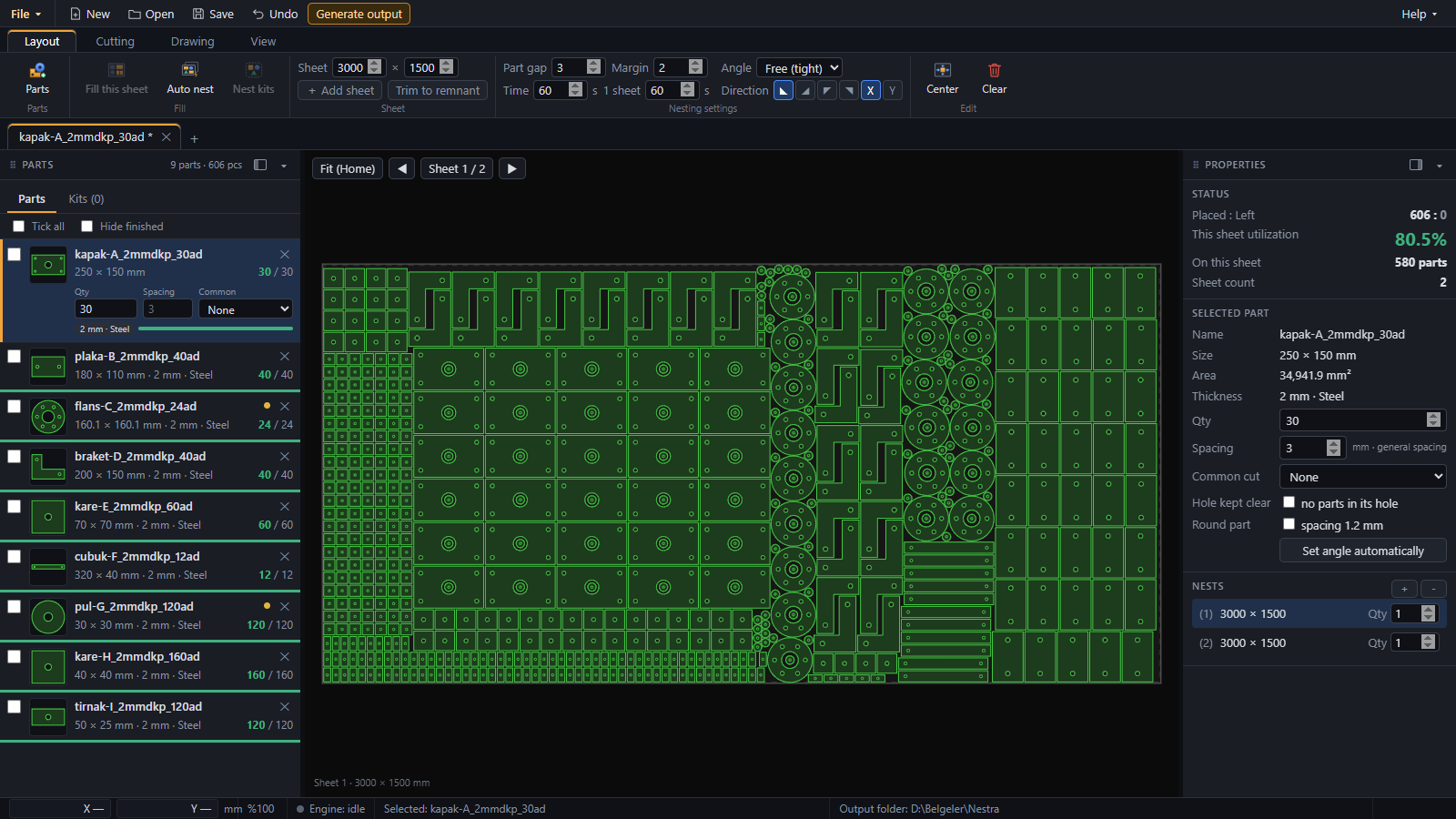
The nesting engineSample job: nine part types, 606 parts, 3000 x 1500 sheets. In 60 seconds the engine packed 580 parts onto the first sheet at 80.5% utilization; the rest went to a second sheet.
Small parts filled the gaps between large ones and the holes inside them.
True-shape nesting
Parts are nested by their real outline, not by a bounding rectangle. Parts are rotated freely to find the tightest fit.
Thousands of trials, the best one stays
The engine spreads over all CPU cores and tries a large number of different layouts at the same time. The screen always shows the best layout so far. You set how long it runs; press Stop at any moment and you keep what is on the screen.
Compaction
As parts are added, the whole layout is pushed together again and again. The used length of the sheet gets shorter and the leftover piece gets bigger.
Small parts fill the holes
Gaps between large parts and the holes inside them are filled with small parts (part-in-part nesting). If a hole must stay empty, you mark it on that part.
Tidy rows for repeated parts
Parts with large quantities are laid out in rows, blocks, honeycomb patterns or interlocking pairs, so the operator can see at a glance what is where.
Common-line cutting
Parts you choose can share an edge and be cut with a single line.
Your manual work is kept
Parts you place by hand stay where they are; the engine nests the rest around them. "Fill this sheet" only fills the empty space of the sheet on screen.
No overlaps
Every result is checked before it is shown. A layout with overlapping parts or a broken gap is never offered.
Fewer sheets
On multi-sheet jobs the engine tries to empty the last sheet, so the job needs one sheet less wherever possible.
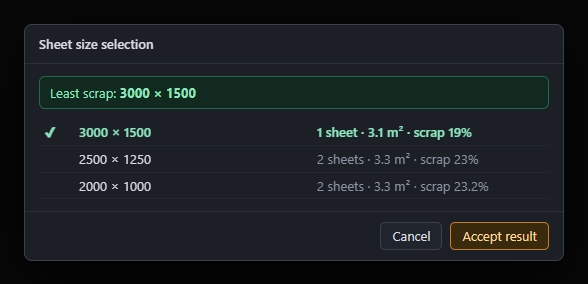
Choose the sheet size with the least scrap.
Sheet sizeTick the sheet sizes you have in stock and press Auto nest. Nestra tries each size, compacts the winner and then moves every sheet to the smallest size it fits on. The table shows all sizes side by side and suggests the one that leaves the least scrap.
The empty end of the last sheet is not counted as scrap: it is cut off at the remnant line and goes back to stock. Every sheet in a job can have its own size, and each one gets its own output files.
No half sets, no extra parts left over.
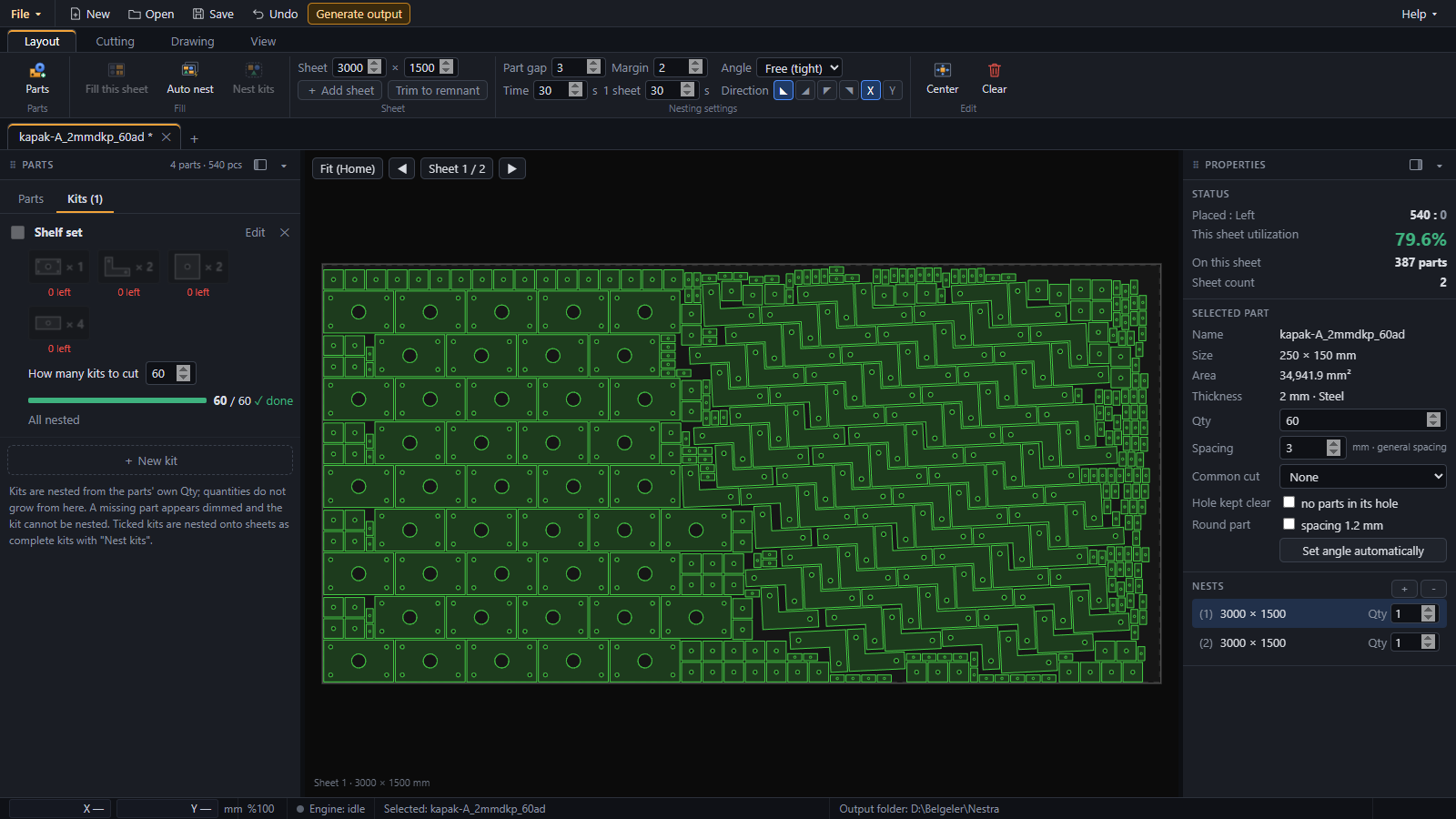
Kit nestingWhen parts are cut as sets (for example 1 cover + 2 brackets + 2 square plates + 4 tabs), define a kit and say how many you need. Nestra nests only complete kits. When a sheet is full, the same sheet is repeated for the remaining kits.
Remnants and leftover sheets
- Remnant line: a cut line is added after the last part so the unused end of the sheet comes off as a clean remnant. It can be moved, deleted or turned into a stepped line that follows the parts.
- Trim to remnant: shrink the sheet to the used length with one click, or wrap it around the parts.
- Leftover sheets as plates: with "Add remnant sheet", load an irregular leftover sheet from a DXF or DFT file and nest new parts onto it.
- Drawing on the sheet: add your own cut, marking or keep-out lines directly on the sheet.
Holes first, outer contour last.
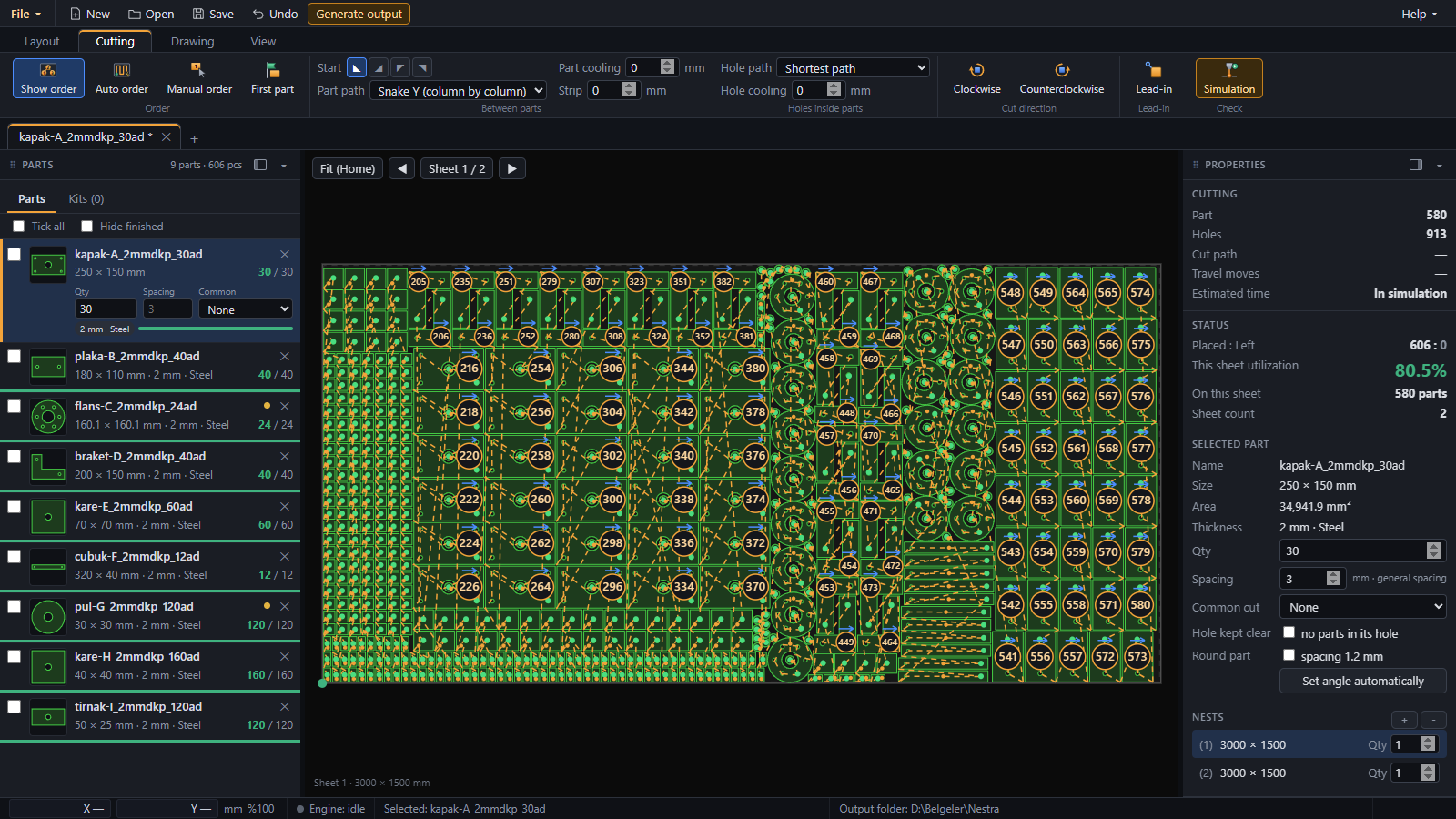
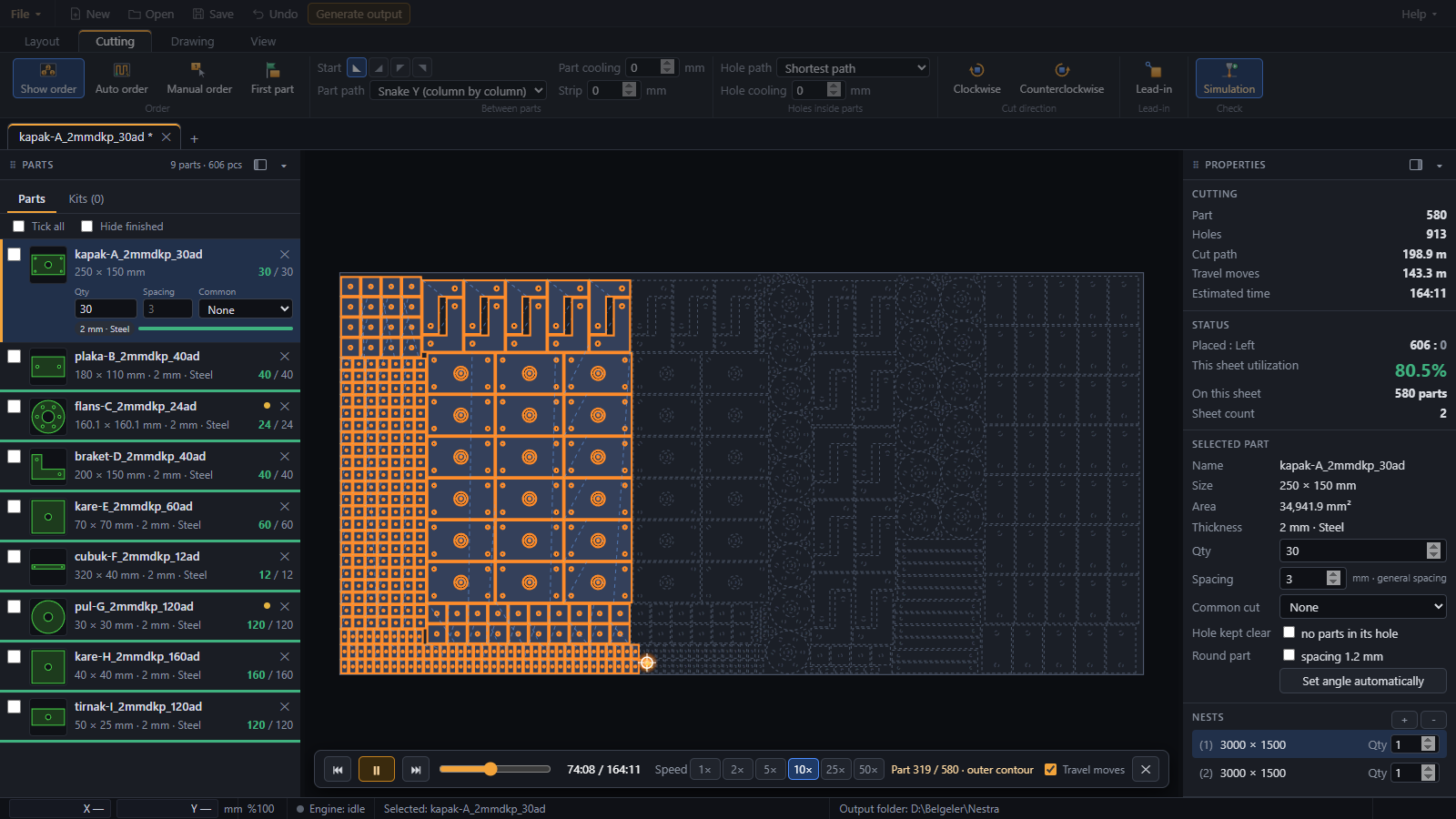
Cutting orderNestra sets the cutting order for you: the sheet is cut in strips from the start corner, holes are cut before the outer contour of each part. Lead-ins are placed automatically on a safe corner.
Click any contour to move a lead-in or change its length; one change applies to every copy of that part on the sheet.
Check the order before the sheet goes on the machine.
SimulationThe simulation plays the cut on screen so you can check the order before the sheet goes on the machine.
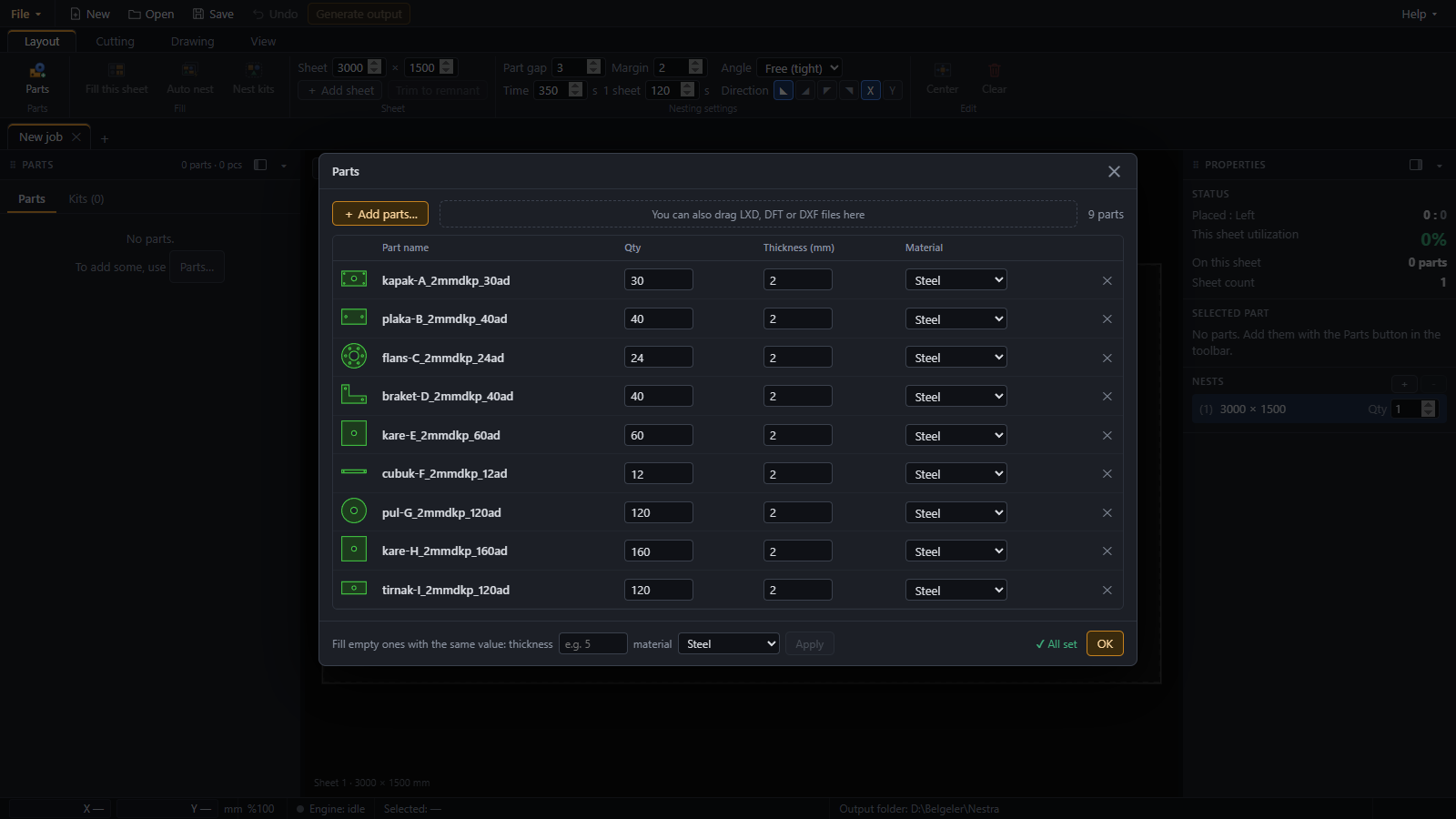
Parts in.
Input · LXD · DFT · DXFDrop LXD, DFT and DXF part files into the Parts window; quantity and thickness are read from the file name when they are written there, and you fill in the rest.
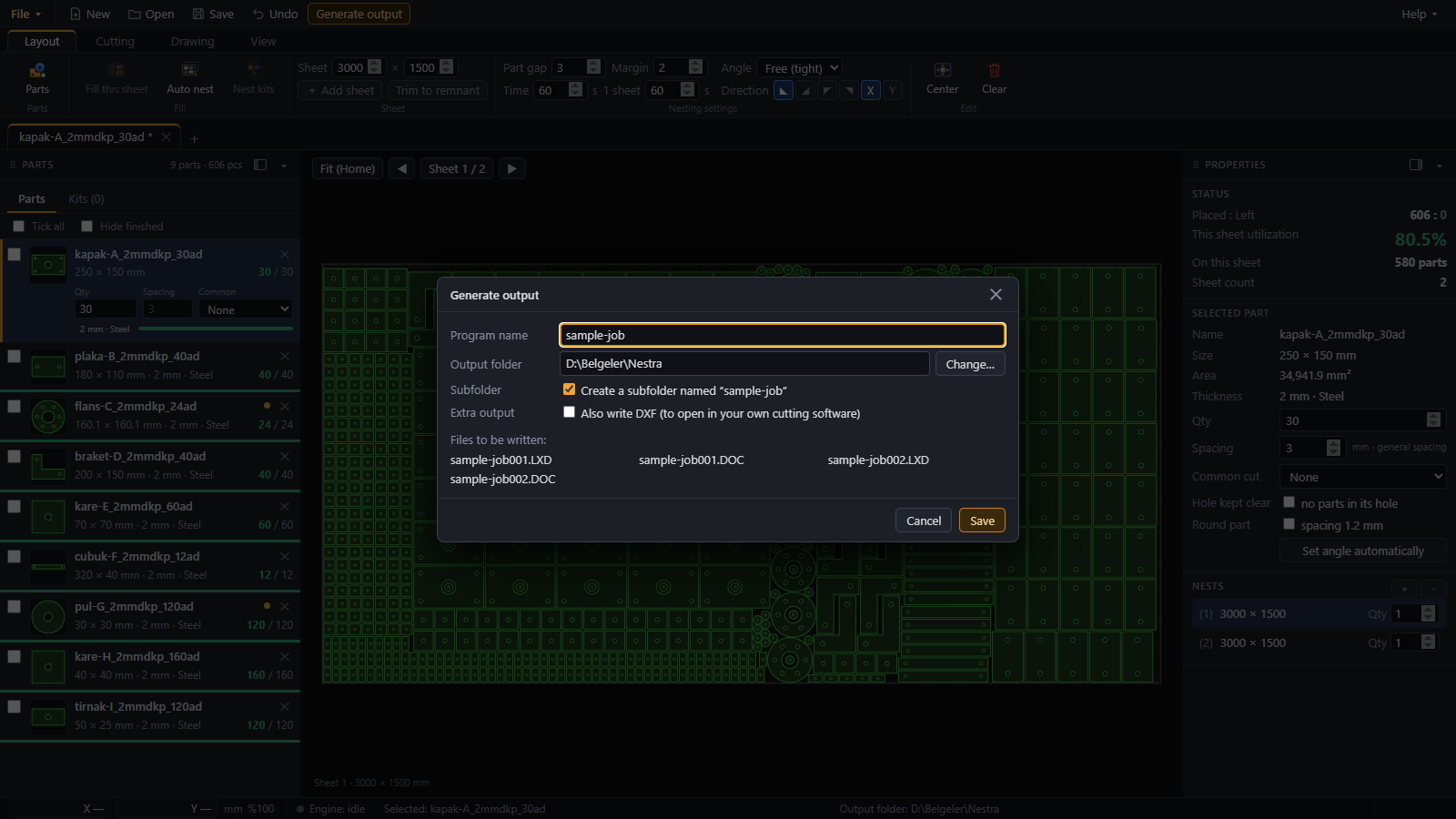
Cutting files out.
Output · LXD · DOC · DXFFor every layout an LXD file and a DOC sheet report, and a DXF if you want one. The report shows the sheet picture, material, utilization and an estimated cutting time.
Identical sheets are written once with their count. Output can go straight to the folder your cutting machine reads from.
Also included
- English and Turkish interface. It follows the Windows language and can be changed in Settings.
- Several jobs open at once in tabs.
- .nestra job files, plus automatic recovery copies if the program is closed without saving.
- All fixed settings in one Settings window, with export / import to move them to another PC.
- You choose how much of the CPU the engine may use.
- "Create support package" collects the job, logs and PC info into a zip. You see what goes in, and it is never sent anywhere by itself.
14 days, no key, the full program.
It runs offline on the PC you install it on: no account, no cloud, no internet needed to work.
Windows 10 / 11 · 64-bit · no account needed